Risk Register¶
The risk register allows you to manage information security risks in accordance with the requirements of ISO 27001:2022, specifically:
- § 6.1.2 — Information security risk assessment process
- § 6.1.3 — Information security risk treatment process
- § 8.2 — Information security risk assessment
Each risk is evaluated using a configurable scoring method, linked to the application's existing controls and action plans, and subject to a periodic review cycle.
Risk Matrix¶
This screen displays a summary view of all risks in matrix form.
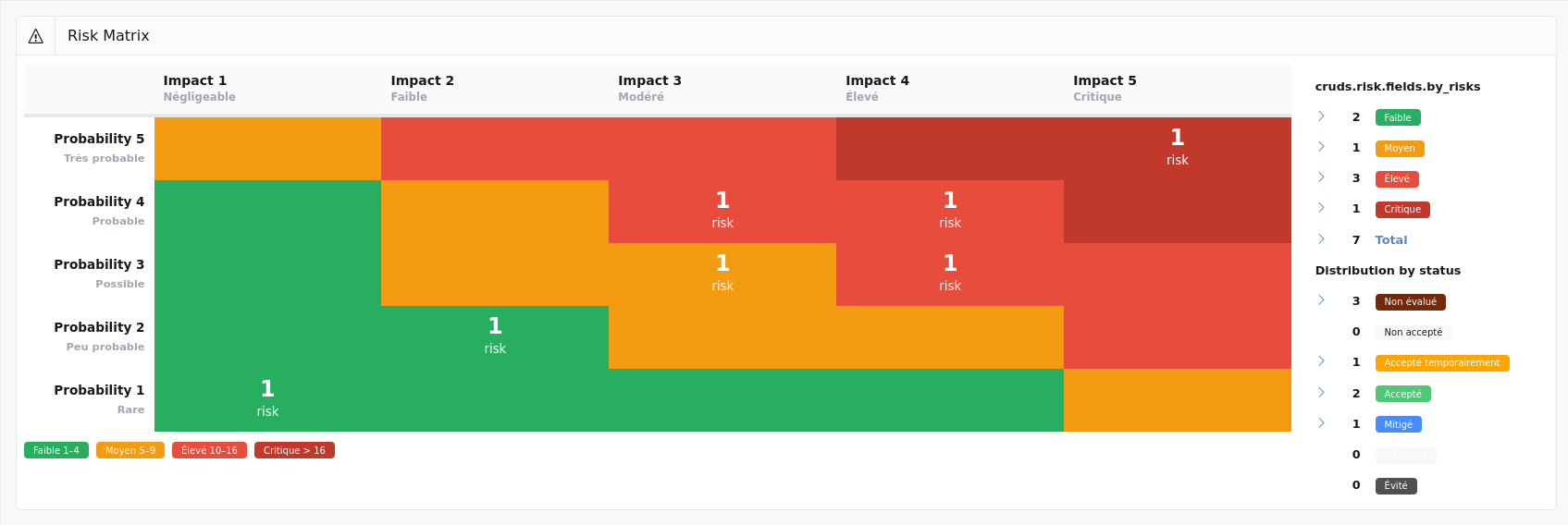
The matrix crosses the probability (or likelihood) and impact axes. Each cell is color-coded according to the corresponding risk level and displays the number of risks positioned in that cell. Clicking on a non-empty cell takes you to the risk list filtered on that score.
The matrix axes and cell colors automatically adapt to the active scoring method.
The side panel summarises the situation:
To the right of the matrix, a table shows the number of risks per level and the distribution of risks by treatment status, each with a direct link to the risk list filtered on the selected criterion.
Risk List¶
This screen displays all recorded risks.
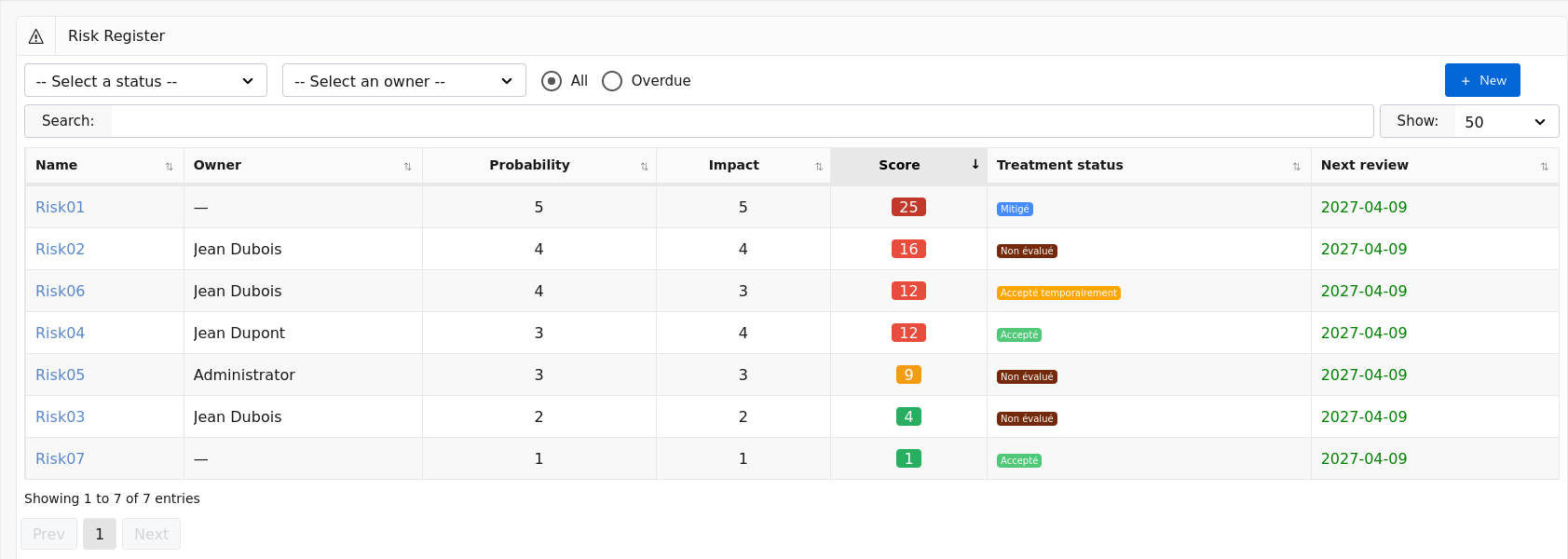
The list can be filtered by:
- Treatment status — Unassessed, Not accepted, Accepted, Mitigated, etc.
- Owner — the person responsible for reviewing the risk.
- Overdue — displays only risks whose next review date has passed.
Users with the Auditee role only see risks they own.
For each risk, the list displays:
- The risk name;
- The owner;
- The probability and impact;
- The calculated score, with a color-coded badge indicating the risk level (Low, Medium, High, Critical);
- The treatment status;
- The next review date, shown in red if overdue.
The New button in the top right allows you to create a new risk.
View a Risk¶
This screen displays the detail of a risk.
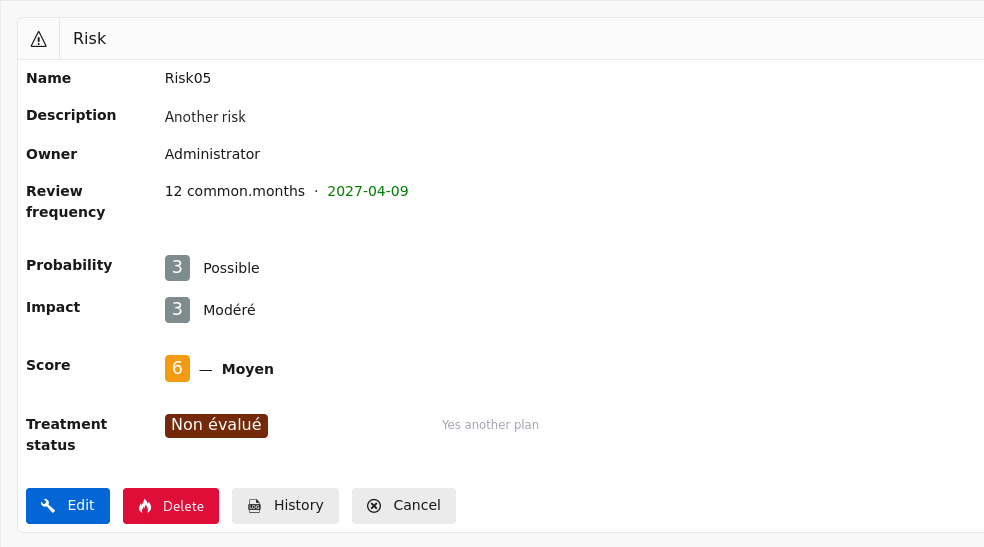
It contains:
- The risk name and description;
- The owner and review frequency with the next review date;
- The assessment:
- Probability with its label and comment (standard formulas);
- Exposure and vulnerability with the calculated likelihood (BSI 200-3 formula);
- Impact with its label and comment;
- The calculated score and the risk level;
- The treatment:
- The treatment status with its comment;
- Linked controls (if status = Mitigated);
- Linked action plans (if status = Not accepted);
The available buttons depend on the user's role:
- Edit — accesses the edit screen (Administrator and User);
- Delete — deletes the risk after confirmation (Administrator only);
- History — displays the change log (Administrator only);
- Cancel — returns to the risk list.
Create a Risk¶
This screen allows you to create a new risk.
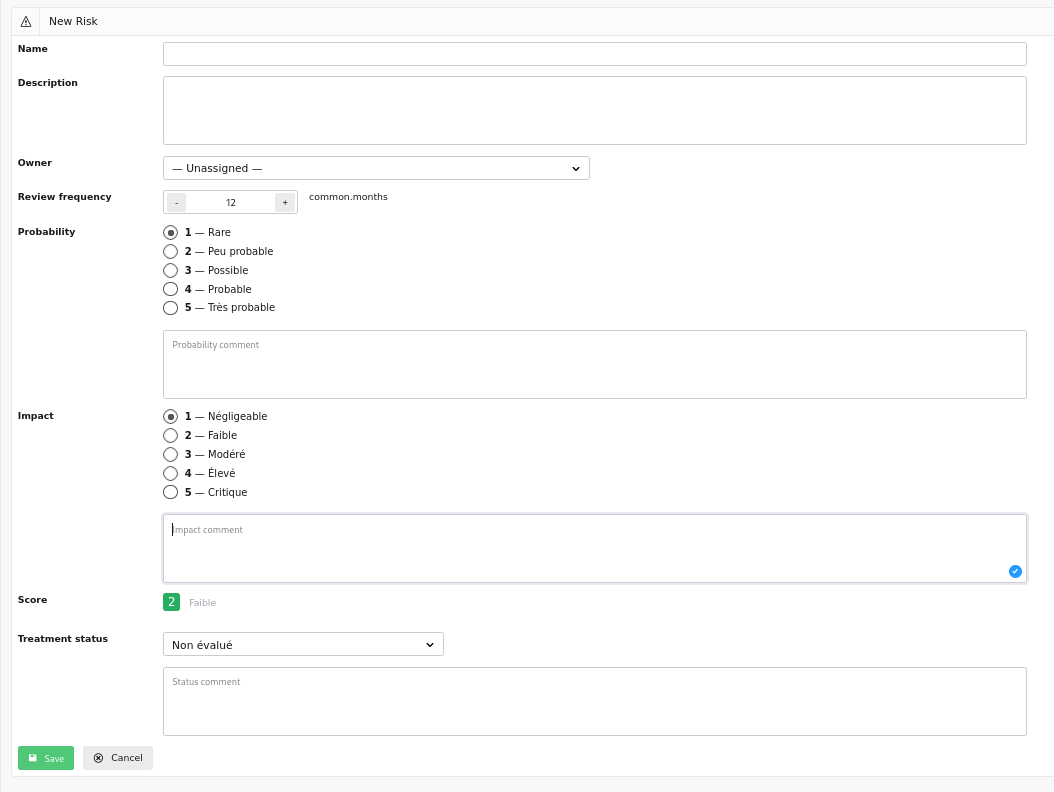
It contains the following fields:
- Name (required) — short, identifiable label for the risk;
- Description — detailed description of the risk;
- Owner — user responsible for the periodic review of the risk;
- Review frequency — interval in months between two reviews. The next review date is calculated automatically if not entered manually.
The risk assessment depends on the active scoring method:
- For standard formulas (Probability × Impact, Probability + Impact, max):
- Probability — level from 1 to N with label and description;
- Probability comment;
- For the BSI 200-3 formula (Likelihood × Impact):
- Exposure — system accessibility (e.g. 0 = off-network, 1 = internal, 2 = Internet);
- Vulnerability — level of exploitability of known weaknesses;
- Impact — severity of consequences if the risk materialises;
- Impact comment;
- Calculated score — updated in real time based on the entered values, with a color-coded badge indicating the level.
Risk treatment is configured via:
- Status — one of: Unassessed, Not accepted, Temporarily accepted, Accepted, Mitigated, Transferred, Avoided;
- Status comment;
- Linked controls — multiple selection from existing controls (displayed only if status = Mitigated);
- Linked action plans — multiple selection from existing action plans (displayed only if status = Not accepted).
A warning is displayed if a Mitigated risk is saved without a linked control, or if a Not accepted risk is saved without a linked action plan.
When you click:
- Save — the risk is created and you are redirected to the risk view;
- Cancel — you return to the risk list.
Edit a Risk¶
This screen allows you to modify an existing risk. It contains the same fields as the create screen, with the addition of:
- The next review date, editable manually;
- The current score pre-filled, dynamically recalculated with each change.
When the review frequency is changed and no next review date is entered, it is automatically recalculated from today's date.
When you click:
- Save — the risk is updated and you are redirected to the risk view;
- Cancel — you return to the risk view without changes.
Scoring Configuration¶
Risk scoring is fully configurable. Multiple configurations can be defined, but only one is active at a time. Changing the active configuration takes effect immediately across the entire register.
Configuration List¶
This screen displays all scoring configurations defined in the application.
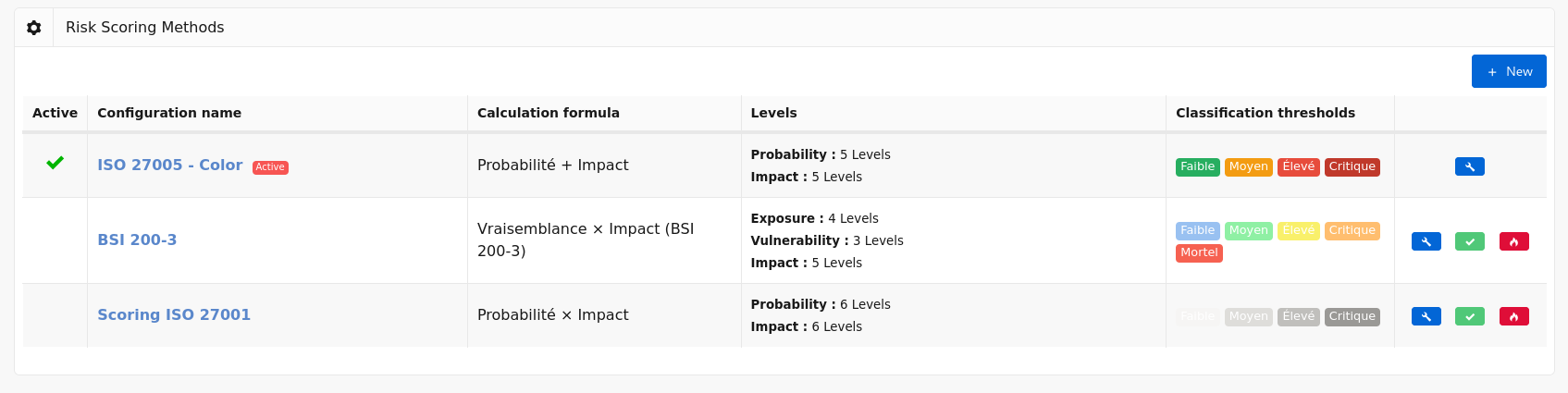
For each configuration, the list displays:
- An active configuration indicator;
- The configuration name;
- The formula used;
- The detail of the configured levels (probability or exposure/vulnerability, impact);
- The classification thresholds as color-coded badges with their score range shown in a tooltip.
The available action buttons for each row are:
- Edit (pencil) — accesses the configuration edit screen;
- Activate (checkmark) — activates this configuration after confirmation. The previously active configuration is automatically deactivated. Button absent if the configuration is already active;
- Delete (flame) — deletes the configuration after confirmation. The active configuration cannot be deleted.
The New button in the top right allows you to create a new configuration.
Create or Edit a Configuration¶
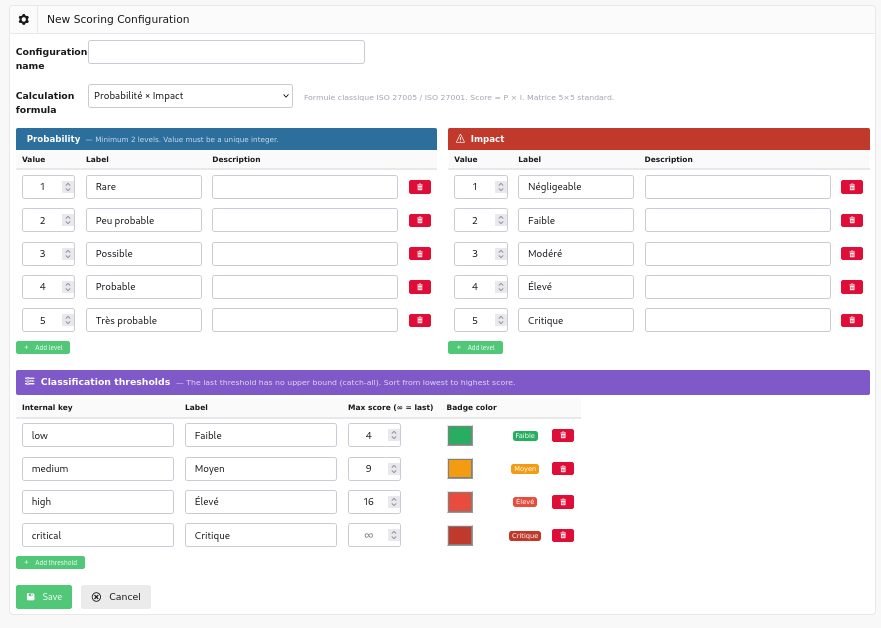
This screen allows you to define a complete scoring method.
Name and Formula¶
- Name — label for the configuration, displayed in the list;
- Formula — the score calculation method. Four formulas are available:
| Formula | Calculation | Recommended use |
|---|---|---|
| Probability × Impact | Score = P × I | Classic ISO 27005 / ISO 27001 |
| Likelihood × Impact | Score = (Exposure + Vulnerability) × I | BSI 200-3 / ISACA CSC-IT |
| Probability + Impact | Score = P + I | Quick triage |
| max(Probability, Impact) | Score = max(P, I) | Conservative approach |
Selecting the Likelihood × Impact formula displays the Exposure and Vulnerability sections in place of the Probability section.
Levels¶
Each assessment axis has a table of customisable levels. Each level is defined by:
- Value — unique integer used in the score calculation;
- Label — short name displayed in the risk form;
- Description — explanatory text to guide users during assessment.
The Add level button inserts an additional row. The delete button (trash icon) removes the row. A minimum of two levels is required per axis.
The configurable axes are:
- Probability — present for standard formulas;
- Exposure — present for the BSI formula (0 = off-network, 1 = internal network, 2 = Internet-facing);
- Vulnerability — present for the BSI formula (1 = none known, 2 = known but not exploitable, 3 = exploitable internally, 4 = remotely exploitable);
- Impact — present for all formulas.
Classification Thresholds¶
Thresholds define the mapping between a numerical score and a qualified risk level. Each threshold includes:
- Internal key — technical identifier (e.g.
low,medium,high,critical); - Label — name displayed in badges and reports;
- Max score — upper bound of the threshold. The last threshold has no upper bound (catch-all);
- Color — MetroUI badge color: Green, Orange, Red, Dark Red, Blue, Grey.
The Preview column displays a live badge reflecting the entered color and label.
Sort thresholds from the lowest to the highest score. The last threshold must always have the Max score field left empty.
When you click:
- Save — the configuration is saved (inactive by default on creation) and you return to the configuration list;
- Cancel — you return to the configuration list without changes.
Integration with Other Modules¶
The risk register integrates with Deming's existing modules:
-
Controls — a risk with Mitigated status can be linked to one or more security controls. The link is bidirectional: the risk detail page lists the associated controls and allows direct navigation to them.
-
Action plans — a risk with Not accepted status must be associated with one or more action plans. The risk detail page lists the associated action plans and allows direct navigation to them.
-
Planning — the next review date of each risk is managed independently of the control planning schedule, but can be manually aligned with your ISMS review cycles.
-
Roles — access restrictions follow the same model as the rest of the application:
| Role | Access |
|---|---|
| Administrator | Read, create, edit, delete, scoring configuration |
| User | Read, create, edit |
| Auditor | Read-only (all risks) |
| Auditee | Read and edit risks they own only |