Controls
This part allows you to define, modify and plan new controls.
List of controls 
The list of controls allows you to display the list of controls, to filter them by domain or to search for a control based on part of its name.
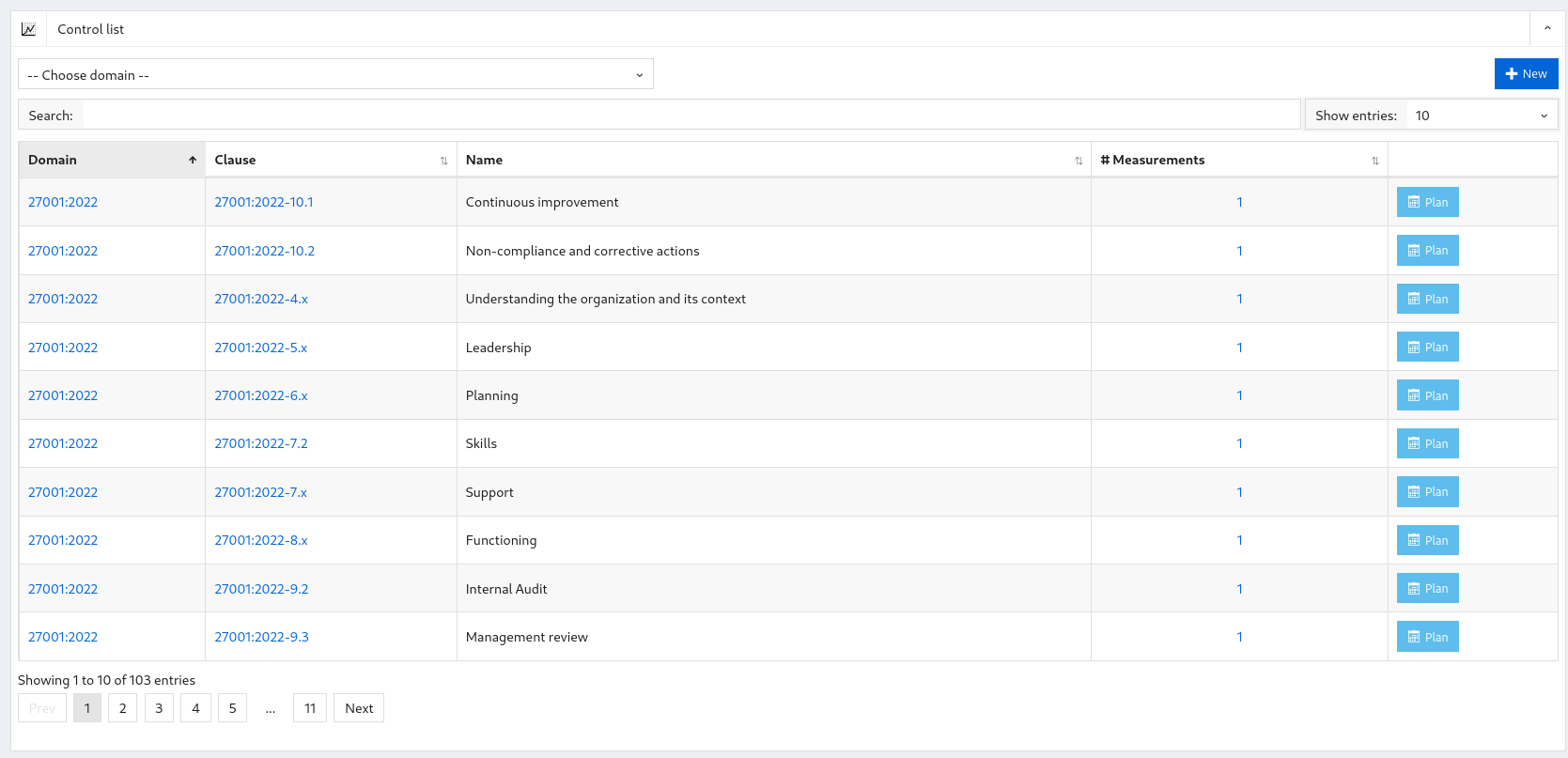
Clicking on :
-
the domain, you arrive at the chosen domain definition
-
the clause, you arrive on the description of the control
-
the number of measurements, you arrive to the list of measurements of this control
-
the "plan" button takes you to the control planning
Show control 
This screen displays a control.
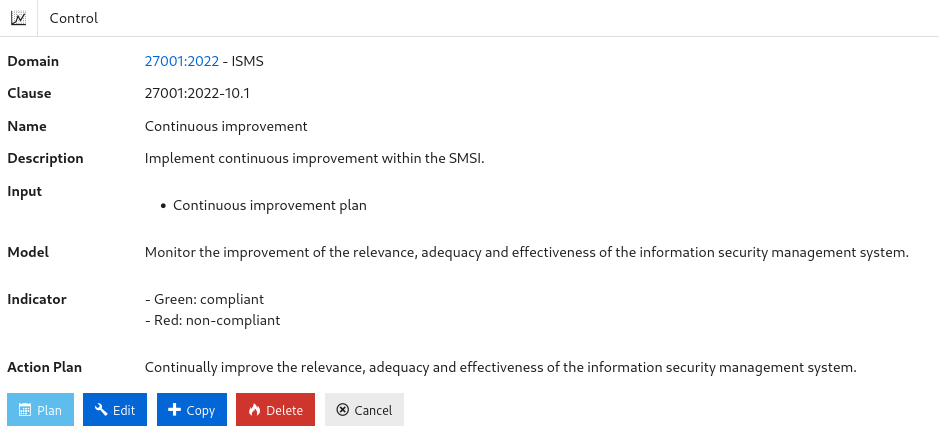
A control consists of:
-
a domain;
-
a clause ;
-
a name;
-
a security objective;
-
attributes;
-
controlment data:
-
the verification model;
-
an indicator (green, orange, red); and
-
an action plan to be applied if control of this control fails.
When you click:
-
“Plan”: you arrive at the control planning screen.
-
"Modify": you arrive at the controlment modification screen
-
“Delete”: allows you to delete the control and return to the list of controls
-
"Cancel": returns you to the list of controls
Edit a control 
This screen allows you to modify a control.
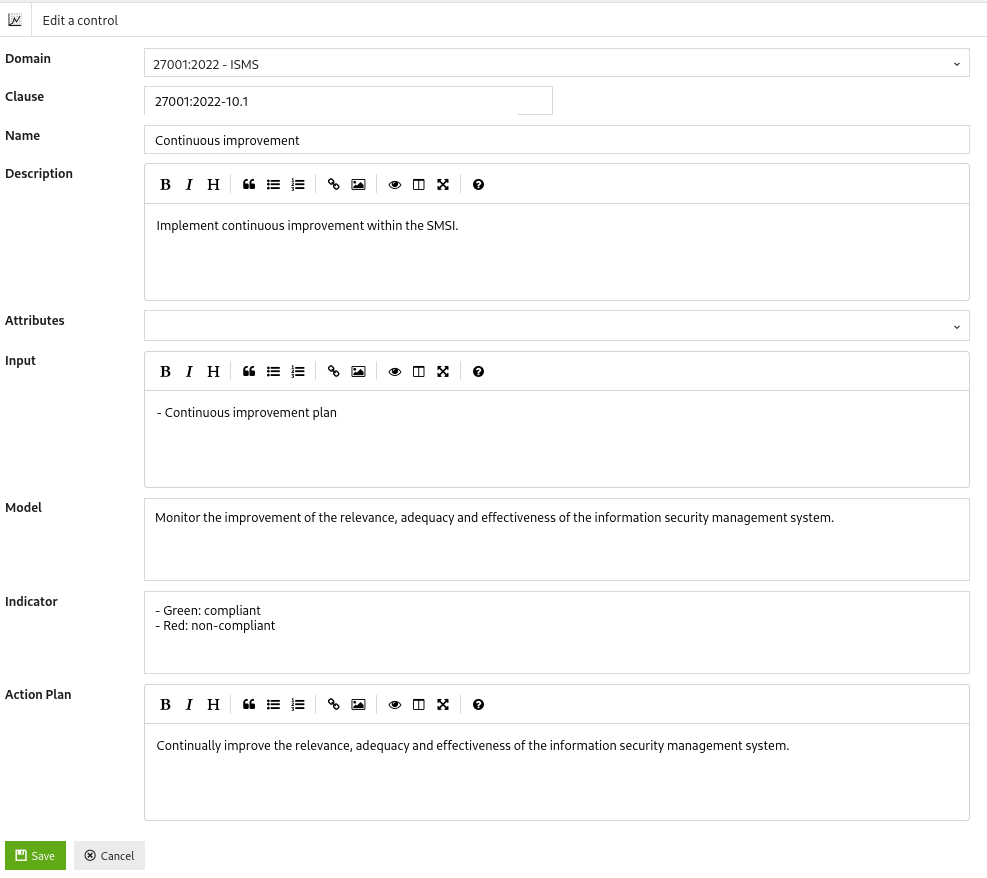
When you click:
-
"Save", the changes are saved and you return to the control display screen.
-
"Cancel", you return to the control display screen.
Schedule a control 
This screen is used to plan a control based on a control.
The screen contains:
-
One or more clauses;
-
The name of the control;
-
The security objective;
-
The planning date;
-
The frequency of checks; and
-
Those responsible for carrying out the controls.
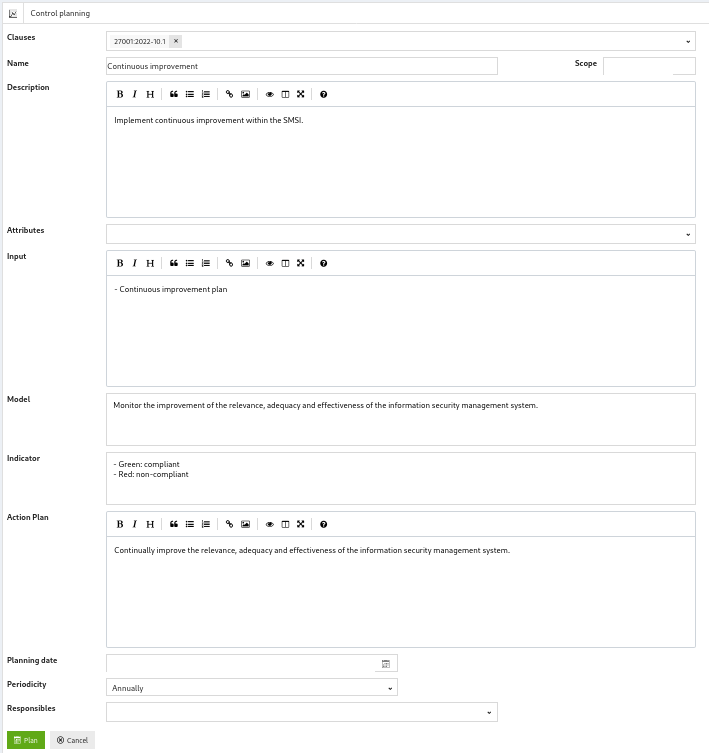
When you click:
-
"Plan",
-
if there is no measurement with this scope, a new measurement is created by copying all the control data and is scheduled for the specified date.
-
if there is a measurement with the same scope for this control, an error is displayed.
-
You then return to the list of controls.
- "Cancel", you return to the list of controls.